A screenshot of the editor, as Alex sees it while Sam works on the same model.
What changes
From one modeller's file to the team's model.
BayesTeam turns a Bayesian network from a file one modeller owns into one shared, live model the whole team builds and questions together, with every change recorded.
BeforeThe model lives in one person's file, and versions travel by e-mail.
With BayesTeamOne model in the browser. Several people edit it at once, and each sees who is in it and every change as it is made.
BeforeNobody knows who changed which probability, or when.
With BayesTeamEvery change is recorded with its author and time, and the Activity Log lists them, newest first.
BeforeStakeholders cannot look at the model without installing and learning a tool, so every question goes through the modeller.
With BayesTeamInvited colleagues open the model in a browser. With the Viewer role they follow every change, set evidence and read each node's values, without being able to change the model.
BeforeReviewing a case together means watching one person's shared screen.
With BayesTeamEvidence is shared by everyone on the model, so the team discusses the same beliefs, with the team chat and an audio call beside the model, and keeps scenarios as cases.
BeforeData and expert knowledge live in separate tools.
With BayesTeamData sets, fitting the tables to data, structure learning and validation work on the same model the experts edit.
BeforeGetting started takes a long time.
With BayesTeamAn AI assistant drafts edits from plain language for a person to apply, and narrated video guides are built into the app.
The idea
What is a Bayesian network?
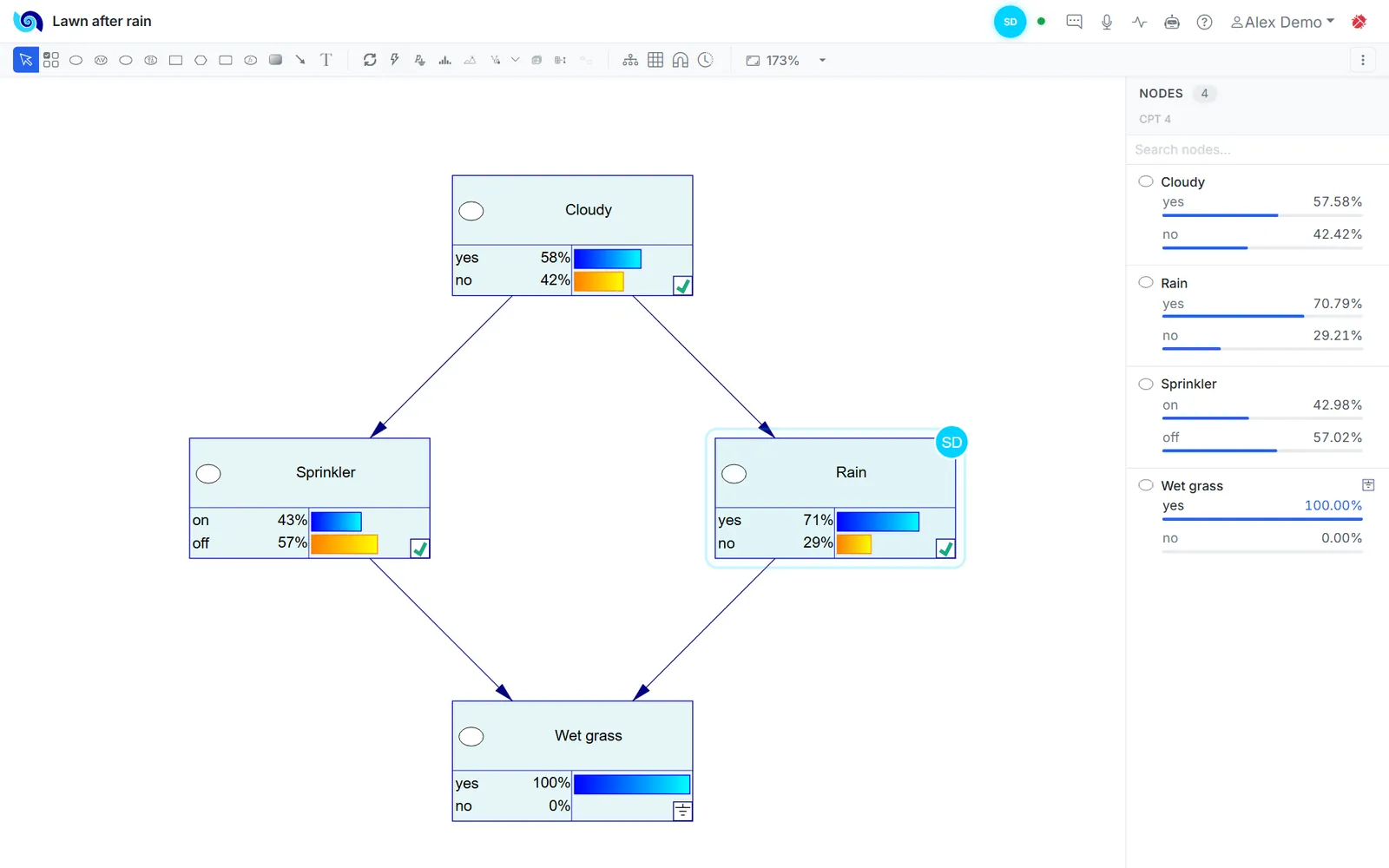
A map of what influences what, with numbers attached. Tell it what
you have observed and it works out, exactly, what that means for
everything you have not. The network below is drawn the way
BayesTeam draws it.
1
Variables become nodes
Each node is something uncertain: is it cloudy, is the sprinkler
on, did it rain, is the grass wet? Each has a few states, and in
the bar chart view every state gets its probability and a bar.
2
Arcs mean direct influence
An arc from Cloudy to Rain says clouds change the chance of rain.
There is no arc from Cloudy to Wet grass: clouds matter to the
lawn only through the sprinkler and the rain.
3
Every node has a probability table
Its definition gives the chance of each state for every
combination of the parents' states. The grass is wet with 0.99
when the sprinkler and the rain both do their work, 0.9 with one
of them, and never with neither.
Click a state on a node or in the Nodes list to observe it, or pick
a question below. The numbers are computed exactly from the tables,
and printed as BayesTeam prints them.
From cause to effect. On a cloudy day rain
becomes likely (80.00%), the sprinkler rarely runs
(10.00%) and wet grass rises to 74.52%.
From effect to cause. The grass is wet, so
something wetted it: rain goes from 50.00% to 70.79%,
the sprinkler from 30.00% to 42.98%.
Explaining away. Now we also learn that the
sprinkler was on. It already explains the wet grass, so rain falls
back from 70.79% to 32.04%, even though the
sprinkler and the rain do not influence each other directly.
The platform
How BayesTeam works.
The model lives on the server and everyone works on the same one, in
the browser. The pictures below are drawn from the app's own panels,
step by step as they behave.
Working together
One model, everyone on it.
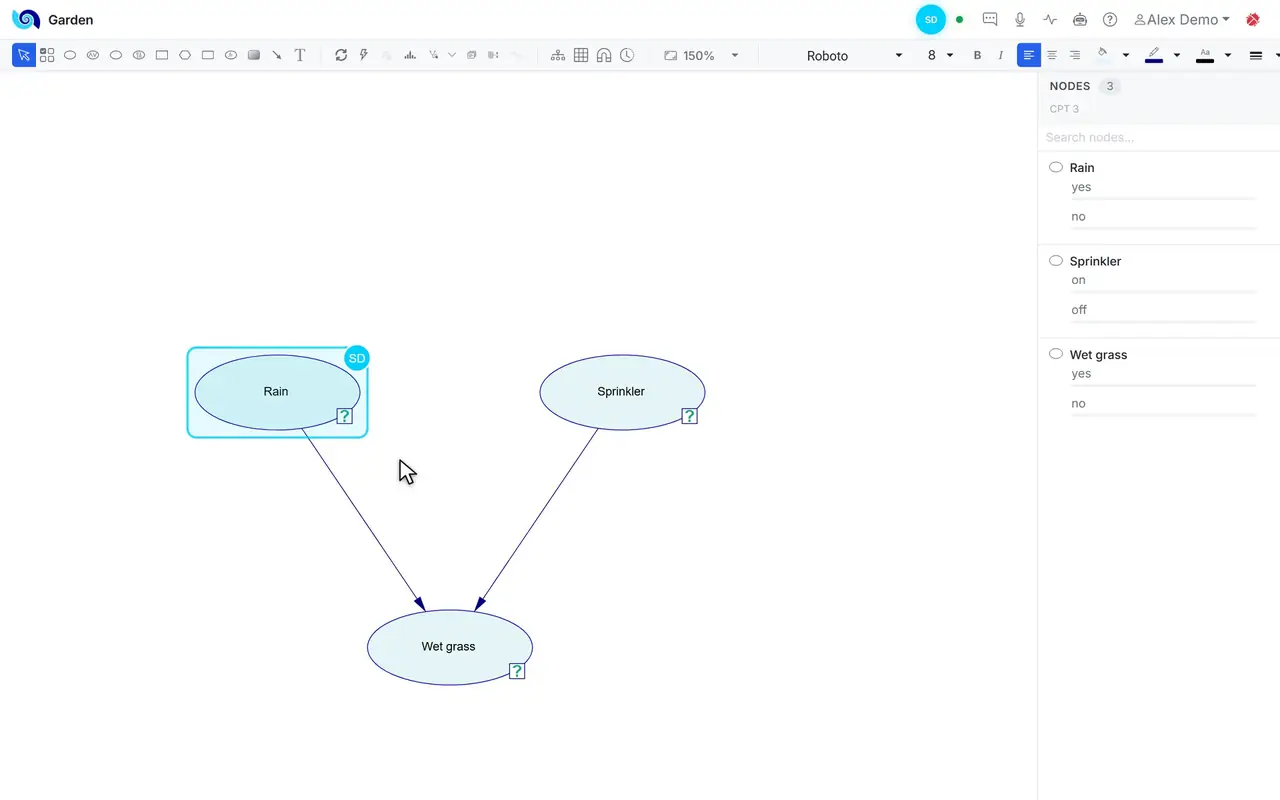
Everyone who has the model open works on the same network and sees what the others do, as they do it. Here Alex watches Sam work; scroll to follow it step by step.
LawnSDAlex Demo
Cloudy
Sprinkler
Rain
Wet grass
SDSam Demo: selectedSDSam Demo: editing
Activity Log
Sam DemoChanged the definition of "Wet grass"
Alex DemoAdded arc Rain → Wet grass
Alex DemoModel created
Team chat · Lawn
Sam Demo
I raised Wet grass when it rains and the sprinkler is on. Can you check?
Type message
Step by step
1Sam opens the model.Sam's initials appear in the navigation bar, in Sam's colour, beside Alex's own name.
2Sam selects Rain.On Alex's screen a ring in Sam's colour and Sam's initials mark the node Sam has selected.
3Sam opens the table of Wet grass.The mark follows Sam to Wet grass, and its badge now says Sam is editing it.
4Sam saves the table.The change reaches Alex at once: Wet grass glows in Sam's colour and the Activity Log records it with Sam's name and the time.
5Sam writes in the team chat.A red dot appears on the chat icon, and the chat beside the model shows Sam's message.
Evidence and cases
Observe, update, keep the case.
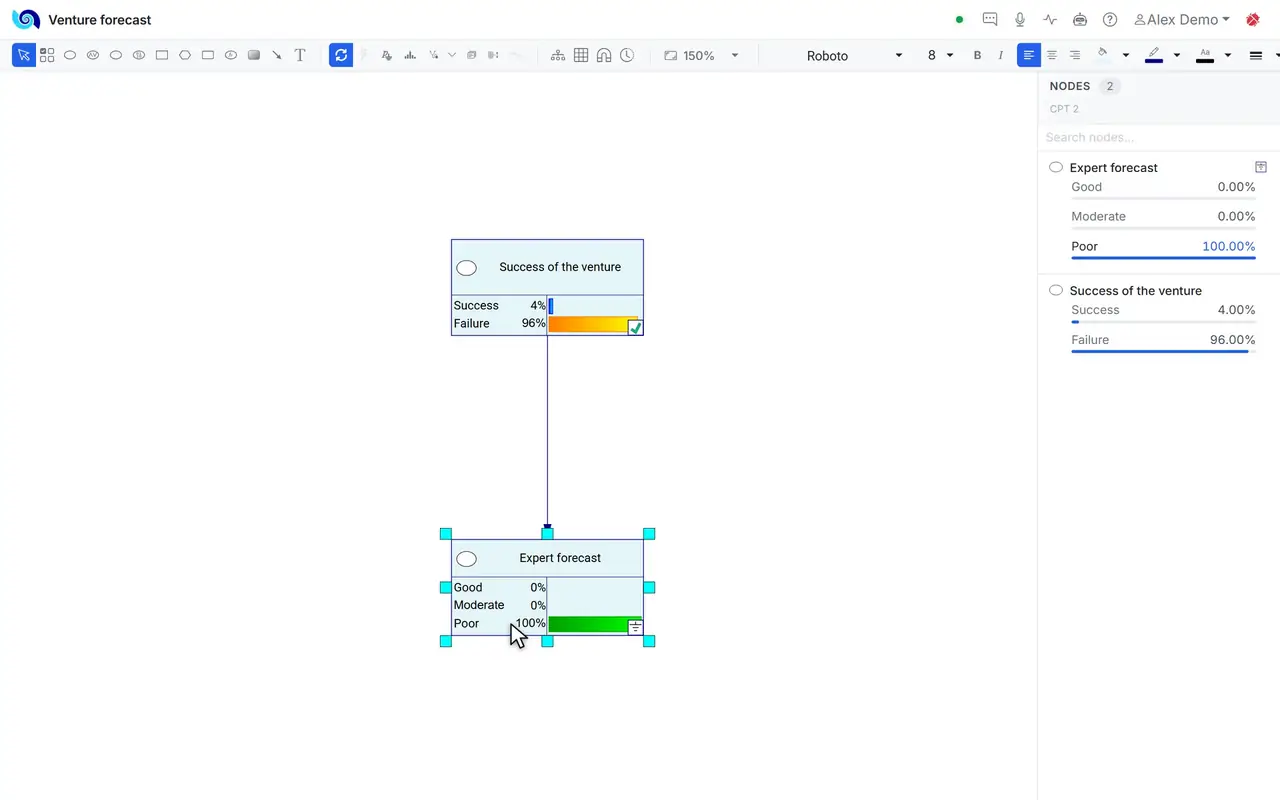
Evidence is shared by everyone on the model. With Update Immediately on, every change is answered at once; here it is off, so each stage can be seen.
LawnAlex Demo
Cloudyyes58%no42%
Sprinkleron43%off57%
Rainyes71%no29%
Wet grassyes100%no0%
Node Properties
Definition
Set Evidence ›yesno
Clear Evidence
Value
Case Manager · Lawn
ApplyFilter
Name
Category
Description
Wet grass
Wet morning
Garden
The lawn is wet at dawn
yes
Step by step
1Set Evidence from the node's menu.Right-click Wet grass, Set Evidence, yes. Its symbol becomes the evidence mark.
2The other beliefs go out of date.Until the next update their bars and numbers turn grey, and a dot on Update Beliefs says an update is due.
3Update Beliefs.Every node gets its new probabilities: Rain yes 71%, Sprinkler on 43%, Cloudy yes 58%.
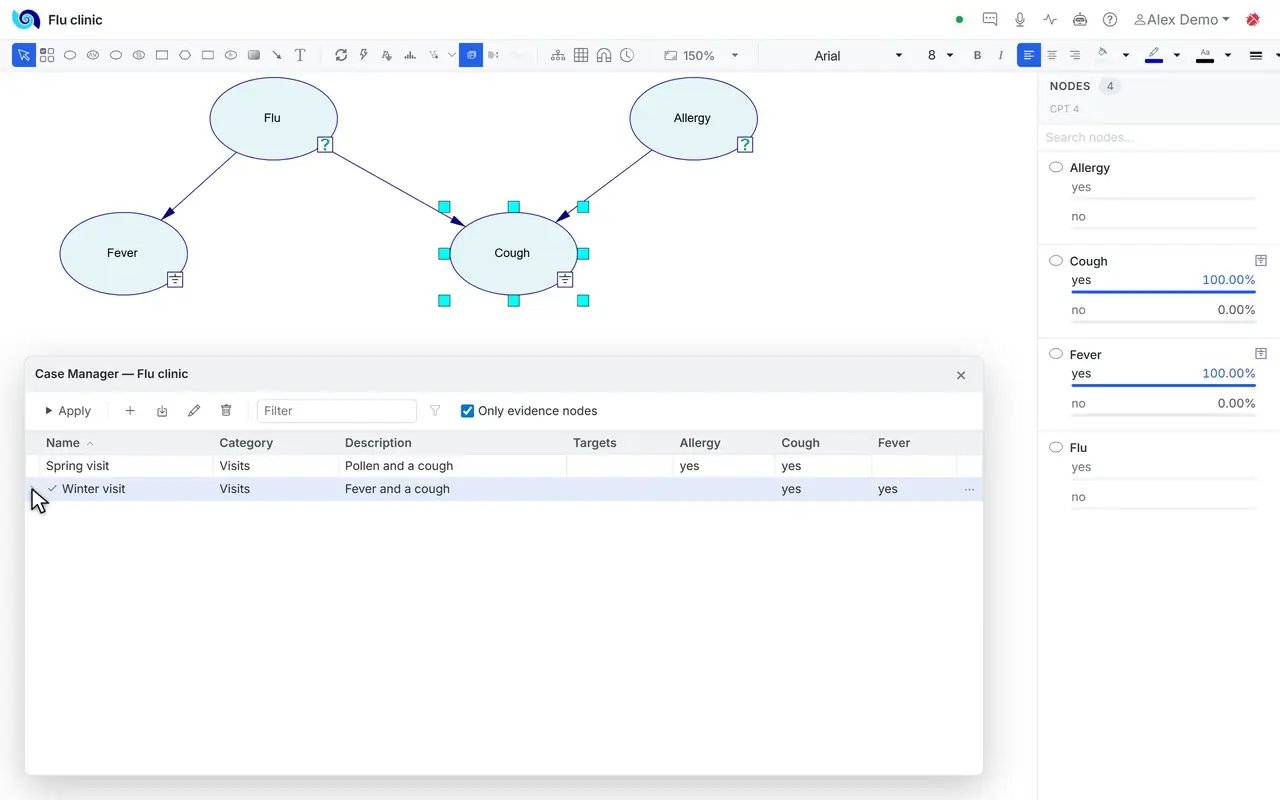
4Keep it as a case.In the Case Manager, + makes a case of the current evidence. Cases are saved inside the model and applied with a double-click.
Diagnosis
Ask the question that tells you most.
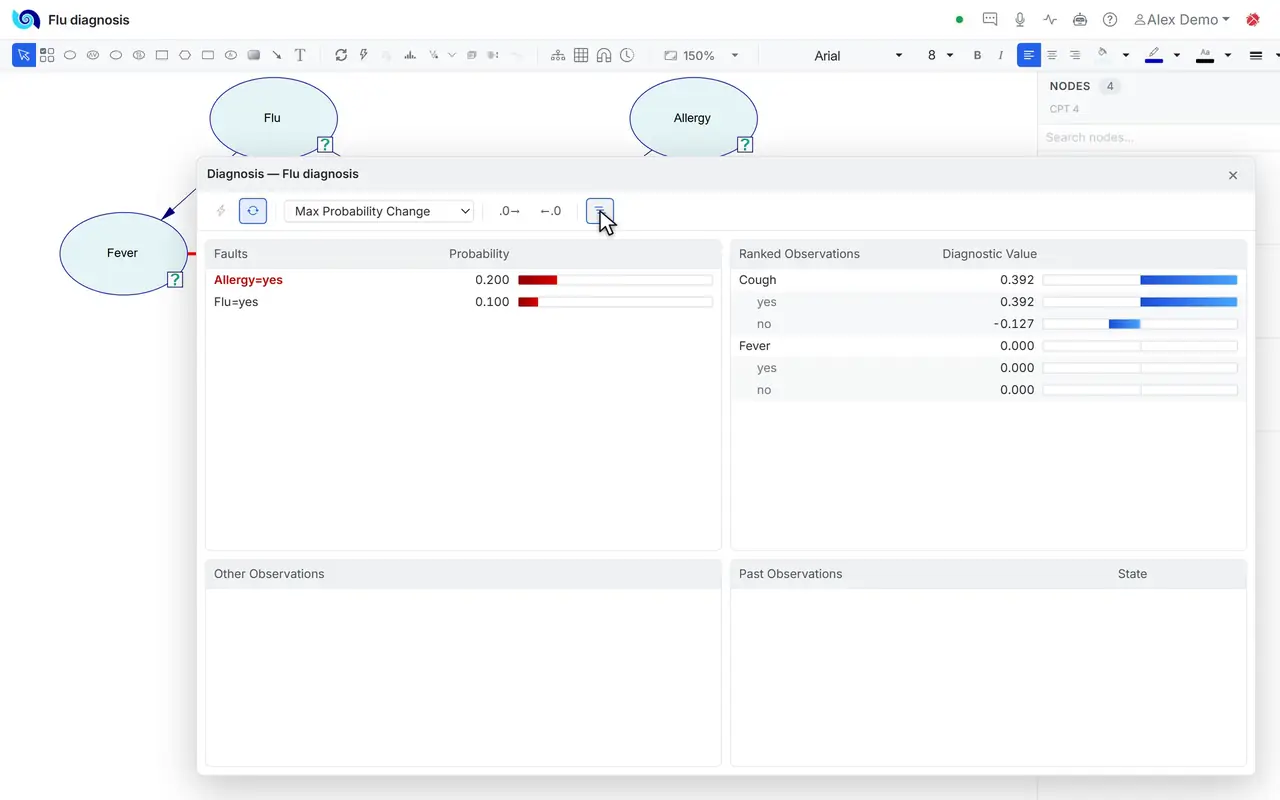
Give nodes a diagnostic role, faults or observations, and run the diagnosis. The numbers are those of the Flu clinic model in the video guide.
Diagnosis · Flu clinic
Max Probability Change.0→←.0
FaultsProbability
Flu=yes0.500
Allergy=yes0.200
Ranked ObservationsDiagnostic Value
Cough-10.328
Fever0.400
Other Observations
Past ObservationsState
Feveryes
Step by step
1Run the diagnosis.Faults are listed with their probabilities, and the questions not yet answered are ranked by diagnostic value: Cough first, at 0.392.
2Pursue a fault.Double-click Flu=yes: the questions are ranked again for it, and Fever moves to the top at 0.400.
3Answer a question.Fever is answered yes: it moves to Past Observations, and Flu=yes rises to 0.500.
AI assistant
The assistant proposes, you apply.
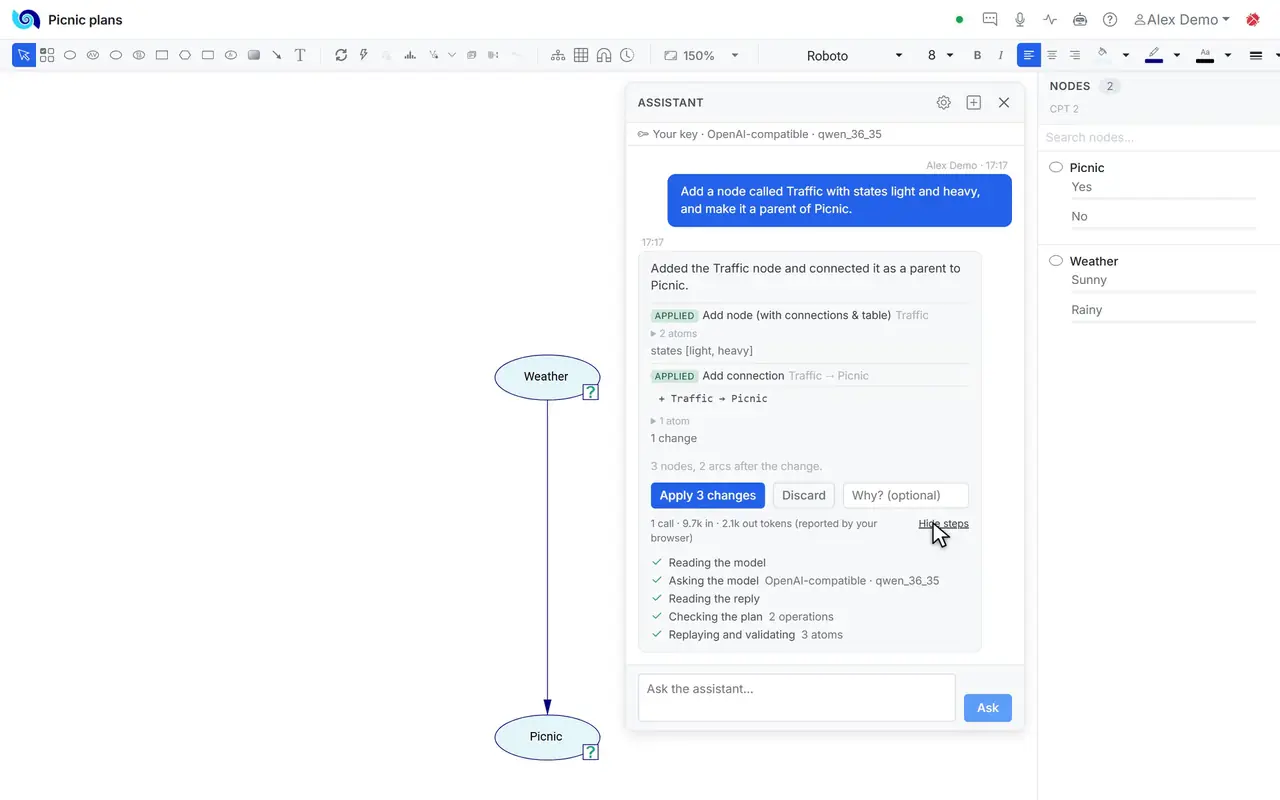
Ask for a change in plain words. Nothing reaches the model until someone applies it. Your administrator decides whether the assistant is switched on.
LawnAlex Demo
Cloudy
Sprinkler
Rain
Wet grass
Season
Assistant
Alex Demo · 10:51
Add a node called Season with states dry and wet, and make it a parent of Rain.
Reading the model
Asking the model
Reading the reply
Checking the plan 2 operations
Replaying and validating 3 atoms
Added the Season node and connected it as a parent of Rain.
AppliedAdd node (with connections & table) Season
▸ 2 atoms
states [dry, wet]
AppliedAdd connection Season → Rain
+ Season → Rain
▸ 1 atom
5 nodes, 5 arcs after the change.
Apply 3 changesDiscardWhy? (optional)
Applied to the model.
Ask the assistant...Ask
Step by step
1Ask in plain words.Alex asks for a node Season, with states dry and wet, as a parent of Rain.
2The assistant checks its plan.It reads the model, asks the language model, checks the plan and replays it on a copy of the network.
3Read the proposal.Each change is listed with what it does and how many atoms it takes. The model has not changed yet.
4Apply.Apply 3 changes puts them into the model, recorded like any other change, and Season appears on the canvas.
Who it is for
For teams that reason with data and models.
Typical uses are diagnosis (medical, technical or fault diagnosis, with faults and observations ranked by diagnostic value), risk and reliability models, and decisions under uncertainty with influence diagrams.
Teams that already model with BayesFusion
Your XDSL models open in BayesTeam as they are, and leave it as XDSL.
The whole team works on one model instead of passing files around, and the Activity Log shows who changed what, and when.
Domain experts and reviewers join in a browser; the Viewer role lets them follow the model and question it without changing it.
Diagnosis, value of information, the most probable explanation and the case manager work on the shared model.
Researchers and scientists
Build one model with your colleagues: everyone sees each change as it is made, and the Activity Log keeps who changed what, and when.
Keep the scenarios you compare as cases inside the model, apply one with a double-click, and see how every conclusion moves with the evidence.
Observe a variable or intervene on it, add soft evidence, and mark the targets you care about.
Weigh decisions with influence diagrams: decision and value nodes beside the chance nodes, with value of information.
Data scientists
Upload data (CSV, TSV, Excel or OpenDocument), clean and discretize it in recorded steps, each one a new version of the data.
Fit a model's tables to the data with EM, learn a structure (Bayesian search, greedy thick thinning, PC, naive Bayes, TAN) and validate the result.
See how sure the fitted tables are, and turn rows of the data into evidence cases.
Model continuous variables with equation nodes, and processes over time with dynamic networks.
Programmers and engineers
Models go in and out as XDSL files, the format BayesFusion's desktop software and programming libraries read, so a model made here can be used in code.
Nothing to install for users: a browser is enough. Your organisation can also run its own BayesTeam server, delivered by BayesFusion as a Docker Compose package.
Sign-in with Google accounts on an allowlist kept by the administrator, and roles for viewers, editors and administrators.
An AI assistant that turns a request in words into checked edits. Where the administrator allows it, users bring their own key, which stays in their browser.
The real thing
See it in the app.
Recordings of BayesTeam itself, from the narrated video guides that
come with the app. Short excerpts, muted.
Sam opens the same model: a second face in the navbar. Sam selects Rain: a ring in Sam's colour. Sam double-clicks Wet grass: the editing badge.
View Nodes As Bar Chart, turn on Update Immediately, then double-click a bar: it becomes the evidence and every bar moves.
Double-click a case: its evidence is applied. Change a cell, update, and the applied case takes the new evidence in.
Run the diagnosis: faults and questions are ranked. Pursue a fault, answer a question, and the ranking moves.
Ask for a new node in words. The assistant reads the model, plans, and lists each change; Apply puts them into the model.
Features
What a modelling team gets.
01
Working together
Everyone on a model sees who else is there, what they have selected or are editing, and every change the moment it is made.
02
Activity Log
Every change is recorded with who made it and when, newest first, and a group of changes opens to show what it held.
03
Team chat and calls
A chat beside every model, kept with it, and an audio call when typing is too slow.
04
Evidence and beliefs
Observe a state and update: every node shows its new probabilities. Probability of evidence and the most probable explanation are on the toolbar.
05
Saved cases
The Case Manager keeps sets of evidence inside the model; double-click a case to apply it.
06
Diagnosis
Mark faults and observations, then rank the questions by diagnostic value. Pursue a fault, answer a question, rank again.
07
Influence diagrams
Decision, value and MAU nodes beside chance nodes, with value of information for a decision.
08
Dynamic networks
A temporal plate with a number of time steps, temporal arcs, evidence per step, and unrolling.
09
Equations and more node types
Equation nodes for continuous variables, and Noisy-MAX, deterministic and DeMorgan nodes.
10
Learning from data
Upload a data set, fit the tables to it, learn a structure, and validate the model.
11
AI assistant
Ask for a change in words, read the changes it proposes, then apply or discard them. Switched on by your administrator.
12
Video guides
Short narrated guides in the Help menu, recorded in the app itself.
Questions
Frequently asked questions.
What is a Bayesian network?
A Bayesian network is a model of uncertain variables and the direct influences between them. Each variable is a node with a few states, each arc is a direct influence, and each node has a table of probabilities for its states given its parents. When you observe some variables, the network computes how likely the states of all the others are.
Is BayesTeam a replacement for BayesFusion's desktop software?
No. BayesTeam is a product of its own, developed alongside BayesFusion's other tools, for teams that build and question a model together in the browser. It reads and writes XDSL, so existing models open in it as they are and models leave it as XDSL.
Can several people edit the same model at once?
Yes. Every change is sent to everyone who has the model open and recorded with its author and time. A colleague's selection and editing are marked on your canvas in their colour. If two people save the same table at the same moment, the first save stands and the second is refused, so nothing is overwritten unseen.
Where does BayesTeam run, and who can see my models?
Models are stored on the BayesTeam server and computed there. Only accounts an administrator has added can sign in, with the role of viewer, editor or administrator. An organisation can run its own BayesTeam server on its own machine. A cloud compute service from BayesFusion is optional and used only when the administrator configures it.
Which file format does it use? Can I bring my existing models?
BayesTeam reads and writes XDSL, BayesFusion's model format. Upload an existing .xdsl file to work on it with your team, and download any model as XDSL.
How do I get access?
Access is by invitation. To request access for yourself or your team, write to support@bayesfusion.com. Once you are added, sign in with your Google account.
Is there an AI assistant, and what does it do?
Yes, where the administrator has switched it on. You ask for a change in plain words; the assistant reads the model, plans the edit, replays it on a copy to check it and lists every change. Nothing changes until someone applies the proposal. You can use your own key for the language model, kept in your browser.
Which inference algorithms are available?
Exact algorithms (clustering, relevance decomposition, polytree) and sampling algorithms (logic sampling, self-importance, heuristic importance, backward, AIS and EPIS sampling), chosen per model. BayesTeam also computes the probability of evidence, the most probable explanation, value of information and diagnostic rankings.
Can BayesTeam learn a model from data?
Yes. Upload a data set, prepare it, then fit the tables of an existing model to the data or learn a new structure from it, and validate the model against the data.
Access
Access by invitation.
To ask for access for yourself or your team, write to
support@bayesfusion.com.
Already invited? Sign in with the Google account your administrator added.